> For the complete documentation index, see [llms.txt](https://specs.govstack.global/llms.txt). Markdown versions of documentation pages are available by appending `.md` to page URLs; this page is available as [Markdown](https://specs.govstack.global/service-patterns/2.-functional-patterns/schedule-an-appointment.md).
# Schedule an appointment
Schedule, manage, and fulfil time-bound interactions (such as appointments, visits, or sessions). The pattern aligns with the [GovStack Scheduler building block](https://scheduler.govstack.global/) and the [GovStack messaging building block](https://messaging.govstack.global/).
Users jobs to be done:
* choose a suitable time and place for a service interaction\
understand what options are available and why
* confirm, change, or cancel a booking when circumstances change
* receive clear confirmation and reminders
### Steps
Scheduling an appointment may be triggered:
* as part of a broader service flow
* by a notification to user
* when user seeks out a scheduling service
{% @mermaid/diagram content="---
config:
theme: redux
layout: dagre
look: classic
-------------
flowchart LR
PH1\["Entrypoint"] --> n1\["Check elegibility"]
PH6\["Manage (view/change/cancel)"] --> PH7\["Close appointment"] & n2\["Provide additional information"]
PH6 -- Cancel booking --> CXL\["Outcome"]
CXL --> n7\["Notification"]
PH7 -- "Follow-up needed" --> n8\["Notification"]
PAY\["Payment"] --> PH5\["Check your answers and submit"]
PH5 --> n3\["Outcome (and get a credential)"]
n3 --> n6\["Notification"]
n4\["Add preference or additional information"] --> PAY
PH7 --> n5\["Give feedback"]
n1 --> PH2\["Provide information"]
PH2 --> n9\["Choose from available options"]
n6 --> PH6
n7 --> PH7
n9 --> n4
n8 --> n9
PH6 -- Reschedule --> n9
PH1@{ shape: rounded}
n1@{ shape: rounded}
PH6@{ shape: rounded}
PH7@{ shape: rounded}
n2@{ shape: rounded}
CXL@{ shape: rounded}
PAY@{ shape: rounded}
PH5@{ shape: rounded}
n3@{ shape: rounded}
n4@{ shape: rounded}
n5@{ shape: rounded}
PH2@{ shape: rounded}
" %}
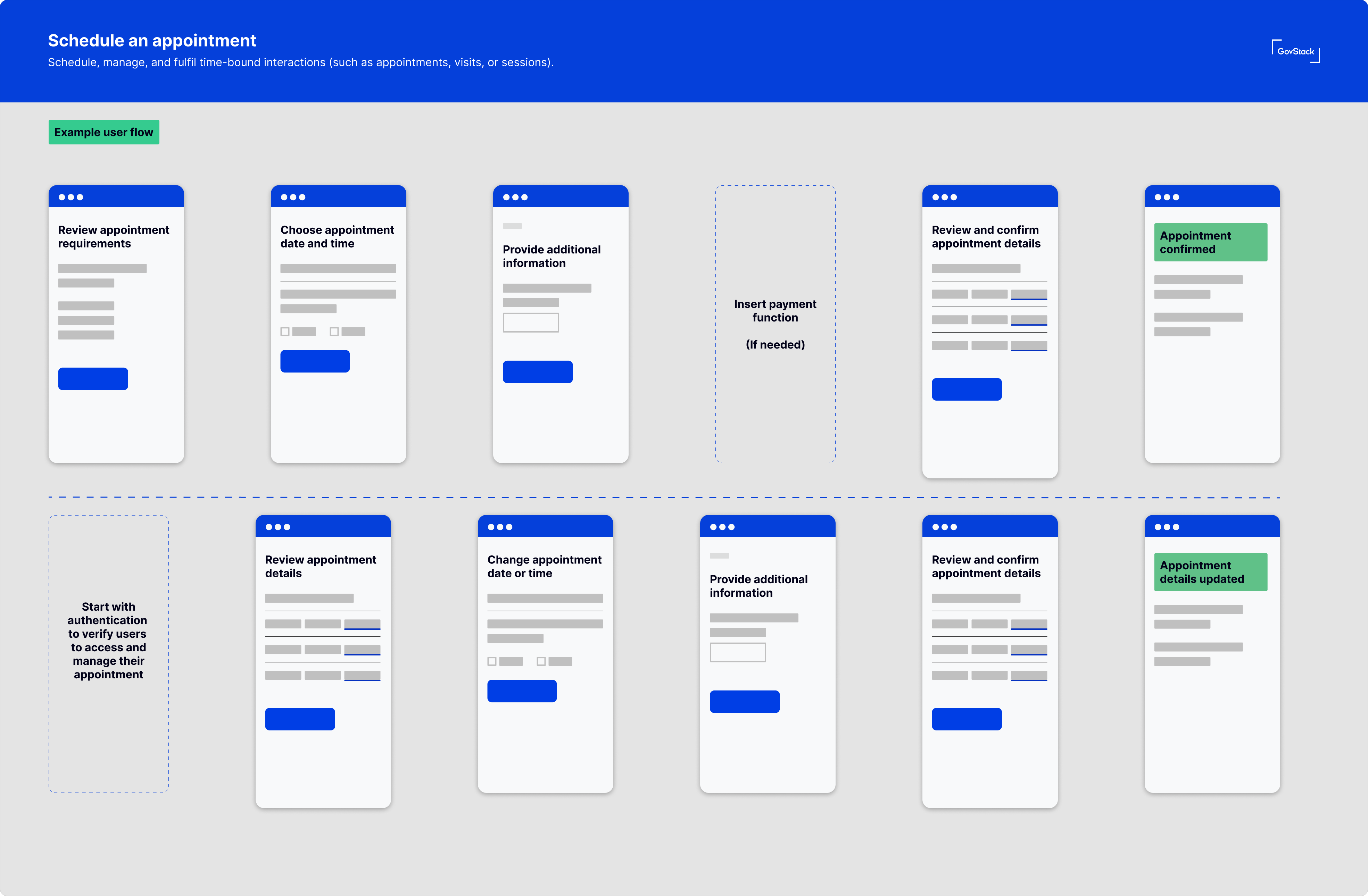
Example user flow
## **1.** Check eligibility
Before scheduling proceeds, the service may need to determine whether the user is eligible and what constraints apply.
Use the [check eligibility](/service-patterns/2.-functional-patterns/check-eligibility.md) functional pattern.
Let users view availability before authentication, unless identity is required to determine valid options, enforce limits, or meet legal or privacy obligations.
Use [matching](/service-patterns/3.-step-patterns/matching.md) where needed to link to existing records and apply constraints.
### 2. Ask for additional information (if needed)
Collect the minimum information needed to support the appointment scheduling. Information such as:
* interaction or appointment type
* preferences affecting availability (location, mode, time range)
* accessibility or support needs
* any other inputs required to calculate availability
### 3. Select an available option
Presents valid options such as appointment date and time for the user to choose and explain constraints where necessary.
Collect additional user preferences, support requirements or contextual information linked to the booking.
Use the [ask a question](/service-patterns/3.-step-patterns/ask-a-question.md) step pattern.
### 4. Take payment (if required)
Where required, payment is collected as a prerequisite
Collect payment where it is a requirement to confirming the appointment booking.
Use the [payment](/service-patterns/2.-functional-patterns/make-a-payment.md) functional pattern.
### 5. Check appointment details and submit
Allows the user to review booking details, make changes and confirm submission.
Use the [check answers](/service-patterns/3.-step-patterns/check-answers.md) step pattern.
### 6. Confirm booking
Confirm that the booking has been successfully created and communicate what happens next.
Useful information to include:
* booking reference
* confirmed time, location, and mode
* next steps or instructions
### 7. Manage booking
Allow the user to view, change, or cancel the booking.
***
---
# Agent Instructions
This documentation is published with GitBook. GitBook is the documentation platform designed so that both humans and AI agents can read, navigate, and reason over technical content effectively. Learn more at gitbook.com.
## Querying This Documentation
If you need additional information that is not directly available in this page, you can query the documentation by asking a question.
Perform an HTTP GET request on the following URL with the `ask` and `goal` query parameters:
```
GET https://specs.govstack.global/service-patterns/2.-functional-patterns/schedule-an-appointment.md?ask=&goal=
```
`ask` is the immediate question: it should be specific, self-contained, and written in natural language.
`goal` is what the user is ultimately trying to achieve, the reason they need the answer. Sharing it helps GitBook give you a better, more relevant answer. A goal is most helpful when it describes the outcome the user wants rather than restating the question. For example, with `ask=how do I create an API token`, a goal like `automate deployments from our CI pipeline` lets GitBook tailor the answer to that use case.
The response will contain a direct answer to the question and relevant excerpts and sources from the documentation.
Use this mechanism when the answer is not explicitly present in the current page, you need clarification or additional context, or you want to retrieve related documentation sections.